
Fund your wallet
How to move tokens into your Invictus wallet from an exchange or another wallet, choose the right network, and keep enough gas.
To provide liquidity you need tokens in your Invictus wallet. This page shows how to get them there safely, whether they are on an exchange such as Binance, Coinbase, OKX, Bybit or Indodax, or in another wallet.
Step 1: Copy your address
Open Receive
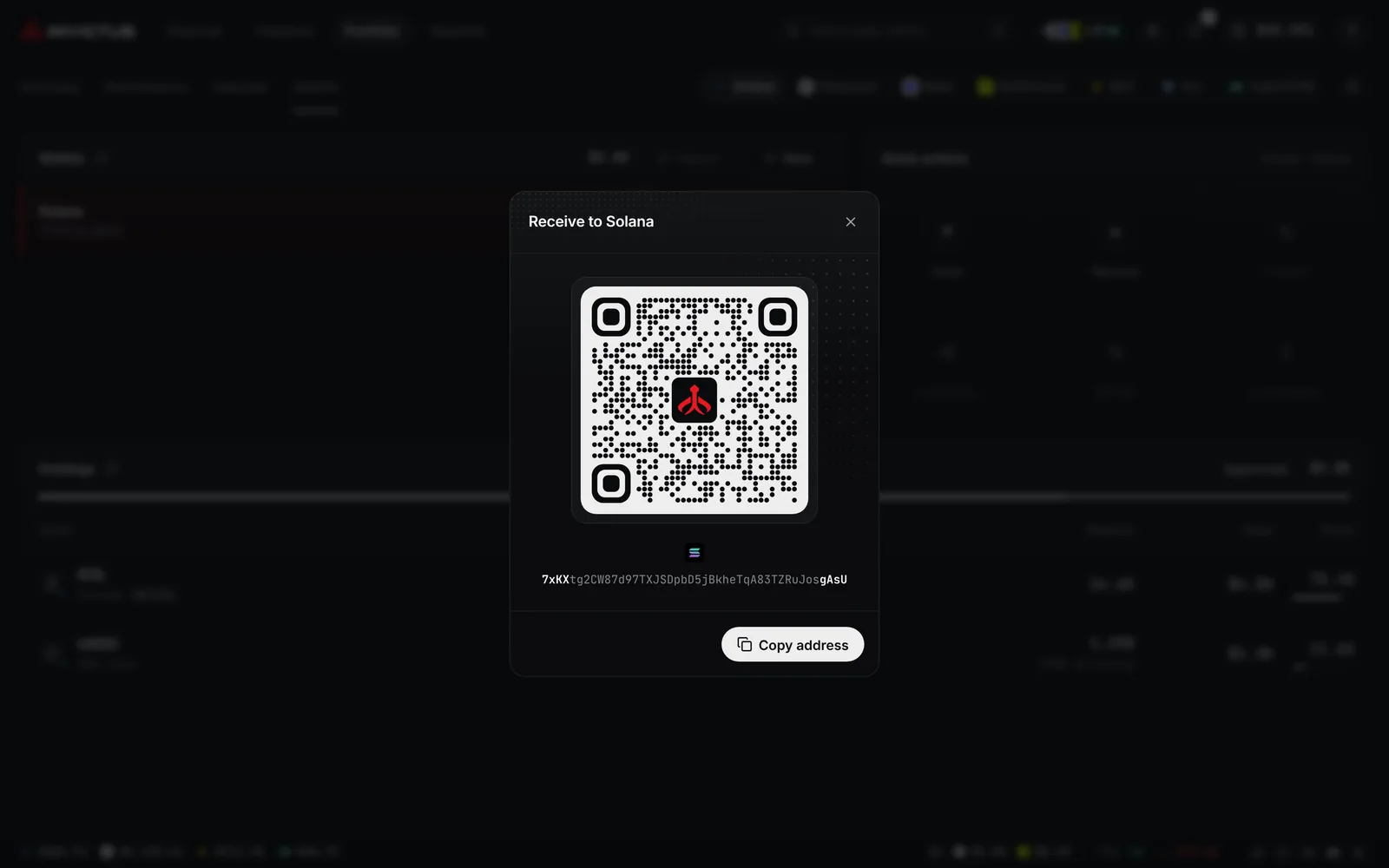
Go to Portfolio, then Wallets, and press Receive on the wallet you want to fund. To fund Solana you need a Solana wallet; create one with New wallet if you have not yet.
Choose the chain
Pick the chain you will provide liquidity on. Invictus shows the address and a QR code for it.
Copy it
Press Copy address. Paste it where you send from, then check the first and last four characters match.
Step 2: Send from where your tokens are
- On the exchange, open Withdraw (sometimes called Send or Transfer out) and choose the token.
- Paste your Invictus address.
- Choose the network. Exchanges name networks in their own way; use the table below to match them.
- Enter the amount. The exchange shows its withdrawal fee and the minimum it allows.
- Confirm. Exchanges often ask for an email or authenticator code, and some hold a first withdrawal to a new address for review.
- Wait. Most withdrawals arrive within minutes; the exchange shows a transaction link once it is sent.
- In your other wallet (MetaMask, Phantom, Rabby or similar), switch to the same chain as the address you copied.
- Choose Send, paste your Invictus address and enter the amount.
- Approve the transaction in that wallet. It pays its own network fee in that chain’s gas token.
Match the network name
| Chain in Invictus | Typical network name on an exchange | Gas token |
|---|---|---|
| Solana | Solana, SOL | SOL |
| Ethereum | Ethereum, ERC20, ETH | ETH |
| Base | Base | ETH |
| Robinhood Chain | Robinhood Chain | ETH |
| BNB Smart Chain | BNB Smart Chain, BEP20, BSC | BNB |
| Arc | Arc | USDC |
| HyperEVM | HyperEVM, Hyperliquid EVM | HYPE |
Not every exchange supports every network. If yours does not list the chain you want, withdraw on a network it does support and move the tokens later.
Step 3: Keep some gas
Every transaction on a blockchain pays a small network fee, called gas, in the chain’s gas token. A zap usually makes more than one transaction, and you will need gas again to claim fees and to close. Keep a small amount of the gas token on each chain you use, in the same wallet as your tokens.
Invictus helps in two ways:
- Gas reserve in Settings keeps enough for your next transaction whenever you send or zap the whole balance.
- The status bar at the bottom of the screen shows the current gas for a swap on the selected chain.
Step 4: Check it arrived
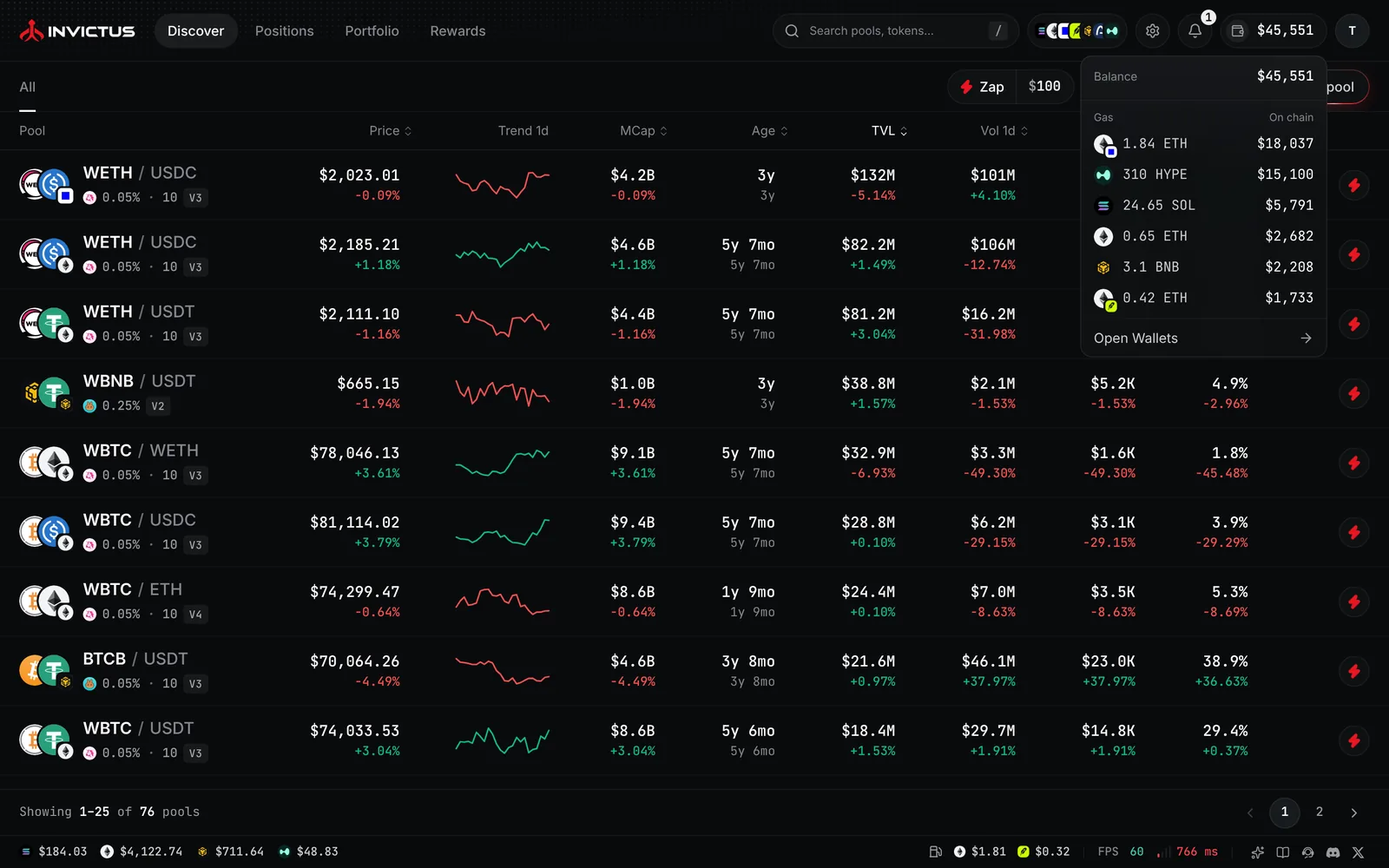
Your balance in the top bar updates once the deposit confirms. The wallet card in Portfolio shows it per chain and per token.
Something went wrong?
The exchange says the withdrawal is complete, but I see nothing
Check the network you chose matches the chain in Invictus, then open the exchange’s transaction link in a block explorer and look at the recipient address. If both are right, wait a few minutes: Invictus updates once the chain confirms.
I sent on the wrong network
If you sent to your Invictus address on another EVM chain, the funds are still yours: the same address exists on every EVM chain. Use Receive for that chain to see them, or export the key and open the wallet elsewhere. Funds sent between families (EVM to Solana or the reverse) usually cannot arrive; contact the sending exchange’s support.
My exchange asks for a memo or tag
Invictus wallets do not use memos or tags. Leave the field empty if the exchange allows it.
More fixes are in Troubleshooting.