Sign in and create your account
How signing in works, what happens the first time, and how to add or remove ways to sign in.
Invictus has no password of its own. You sign in with an account you already have, and Invictus uses it to recognise you. The sign-in itself is handled by Privy, a wallet and login provider that also creates and protects your Invictus wallets (see Your wallets).
Ways to sign in
| Method | What you need | Good to know |
|---|---|---|
| A Google account | The quickest. Your Google name and picture become your profile. | |
| Telegram | A Telegram account | Telegram asks you to confirm the sign-in in the Telegram app. |
| Wallet | An EVM or Solana wallet, such as a browser extension | You sign a message to prove you own the address. Signing a message costs nothing and moves no funds. |
You can add more methods later, so you never lose access because one of them is gone.
Your first sign-in
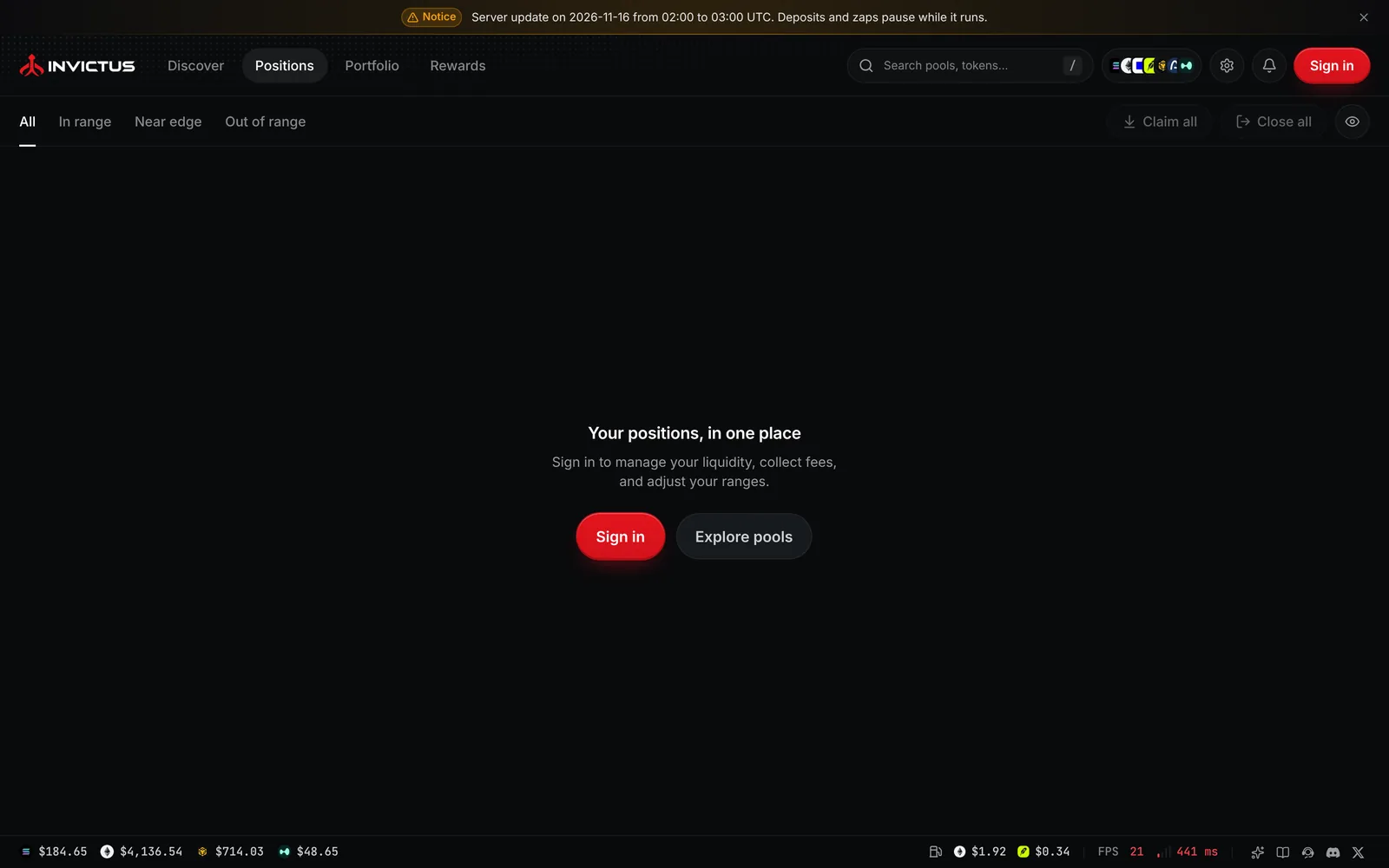
Press Sign in
Open app.lpinvictus.com. Screens that need an account, such as Positions, show a sign-in prompt instead of data until you sign in.
Choose a method and finish it
A Privy window opens. Pick Google, Telegram or a wallet and follow its prompts. A short check from Cloudflare Turnstile confirms you are a person and not a bot. If it shows a box, tick it.
Accept the terms
The first time, Invictus shows Accept to continue with links to the Terms of use and the Risk disclosure. Read them: providing liquidity can lose money, and the disclosure explains how. You must accept both to use the terminal.
Make your wallet
Invictus then offers to Make your wallet. Press Create wallet. Your first wallet is named Main wallet. It is an EVM wallet: one address that works on Ethereum, Base, Robinhood Chain, BNB Smart Chain, Arc and HyperEVM. To use Solana, add a Solana wallet afterwards from Portfolio, then Wallets, then New wallet (see Your wallets).
That is all. You land on Discover, and your wallet balance appears in the top bar.
Manage how you sign in
Open the account menu (your picture in the top right) and choose Security.
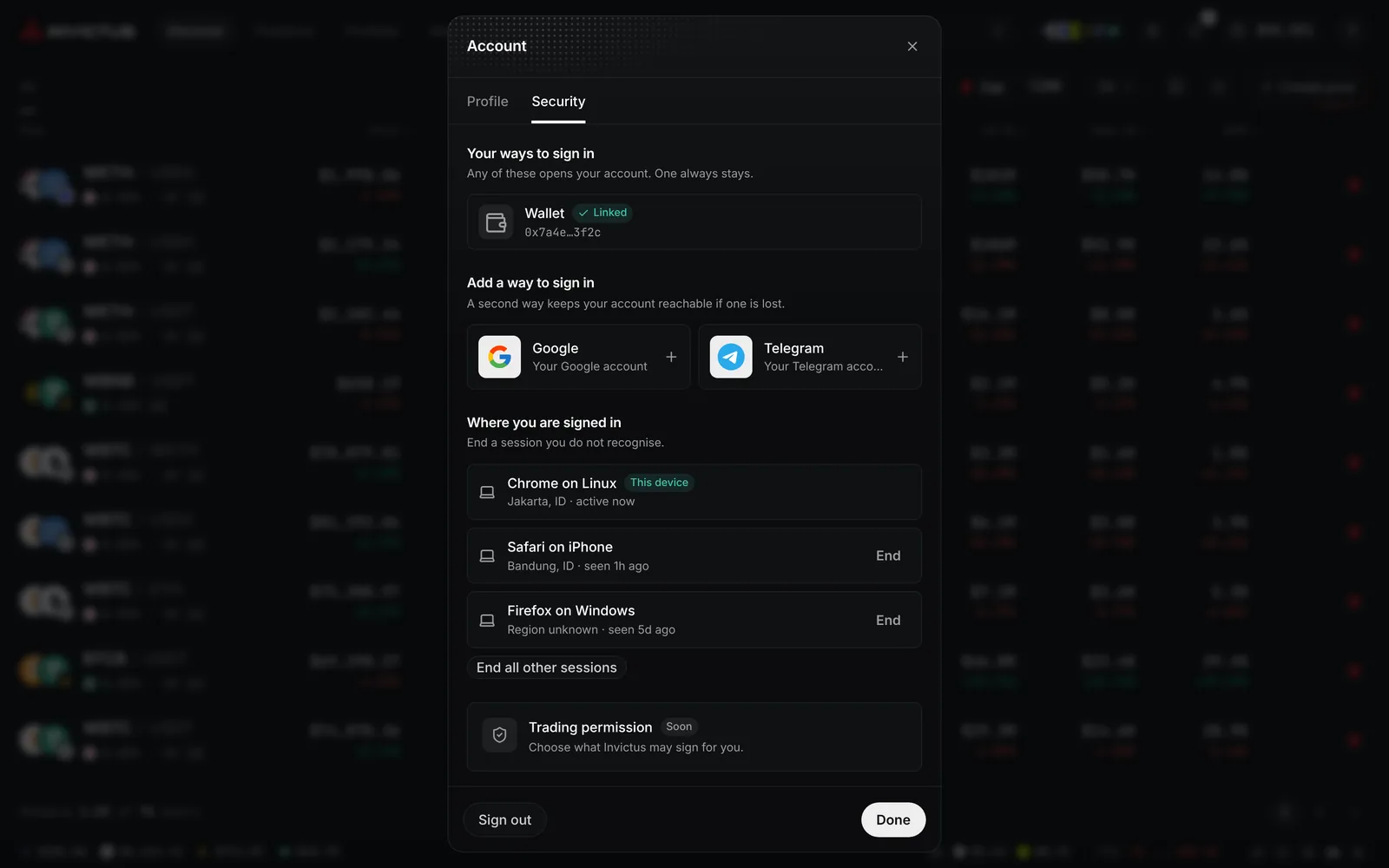
- Your ways to sign in lists each linked Google account, Telegram account or wallet. Use Add a way to sign in to link another one. You can remove any of them except the last.
- Where you are signed in lists your active sessions. Sign out of any you do not recognise.
- Telegram alerts links a Telegram chat so alerts reach you there. See Alerts.
- Trading permission is marked Soon. It will let you choose what Invictus may sign for you; today, every transaction waits for your own confirmation.
Your profile
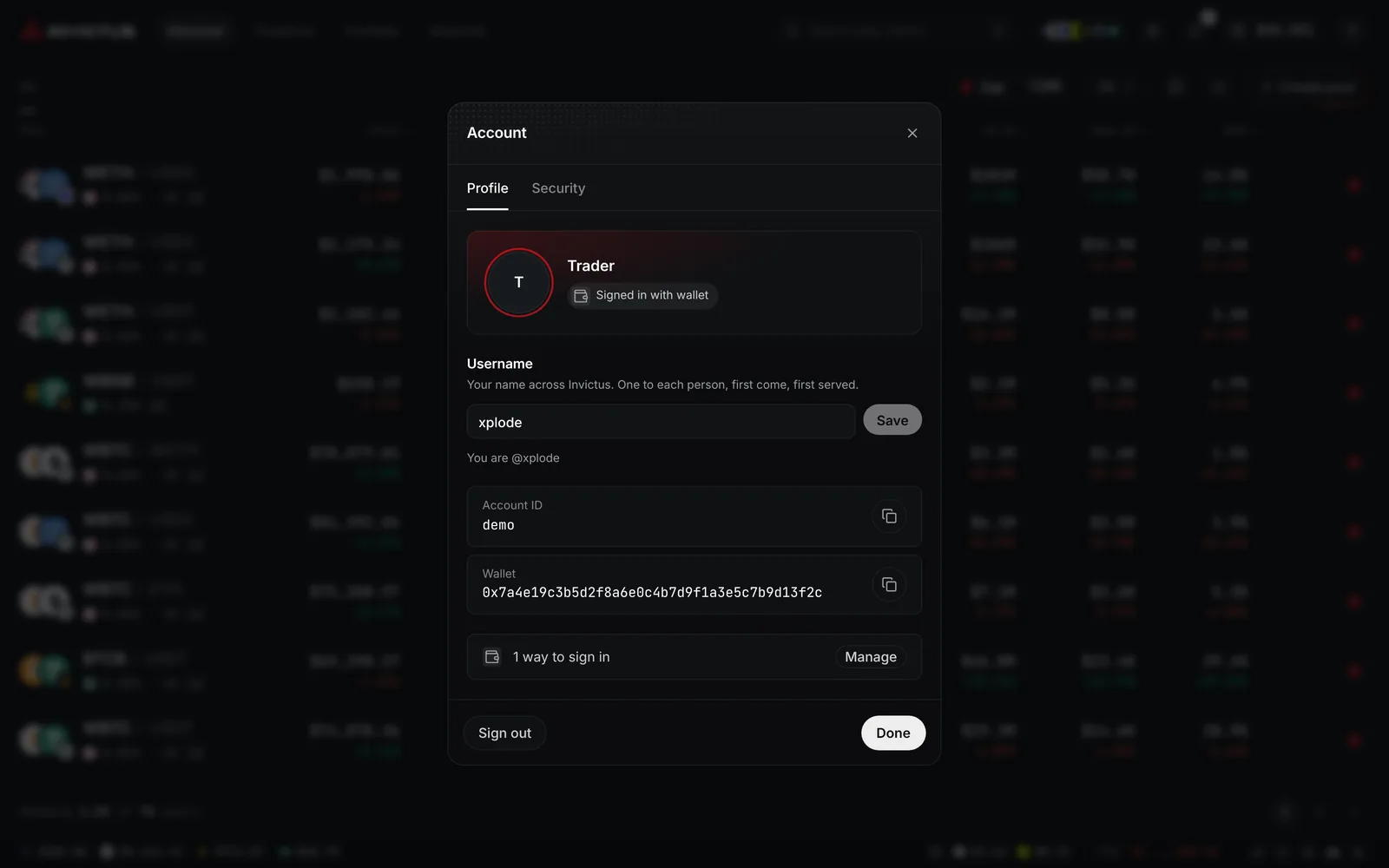
Profile, in the same menu, holds your Username. Set one so you are easy to recognise, for example on the rewards leaderboard.