
Alerts and notifications
How to be told when a position leaves its range, has fees to collect or when a pool moves, in the Invictus inbox or on Telegram.
A liquidity position needs attention at the right moment: when the price leaves your range it stops earning. Alerts tell you when that happens, so you do not have to watch the screen.
Where alerts arrive
- Inbox: the bell in the top bar. Every alert lands here.
- Telegram: a chat with the Invictus bot, once you link it (see below).
- Sounds: a short sound when a trade ends or an alert arrives, if you turn it on in Settings, then Sounds.
Alerts on a position or a pool
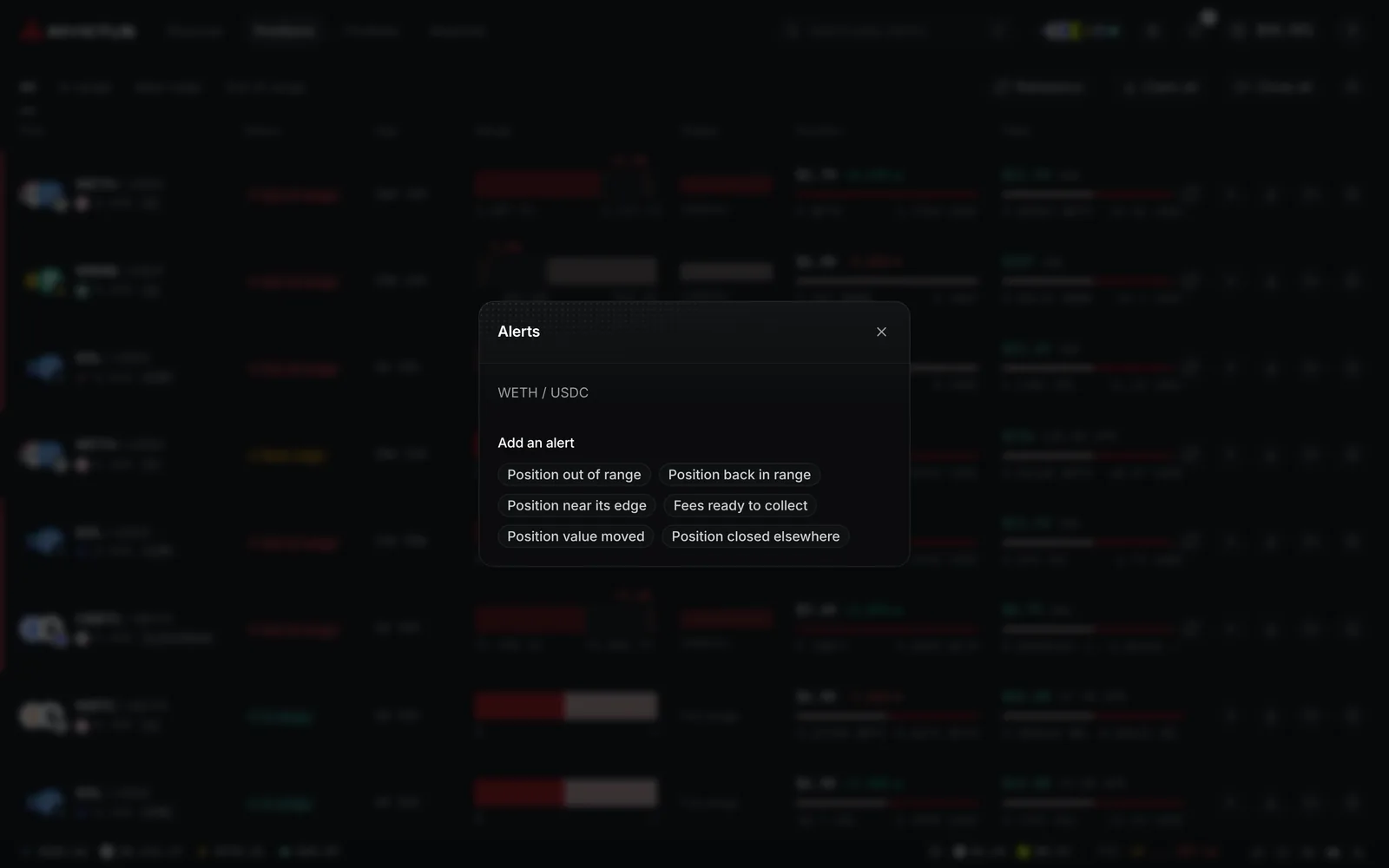
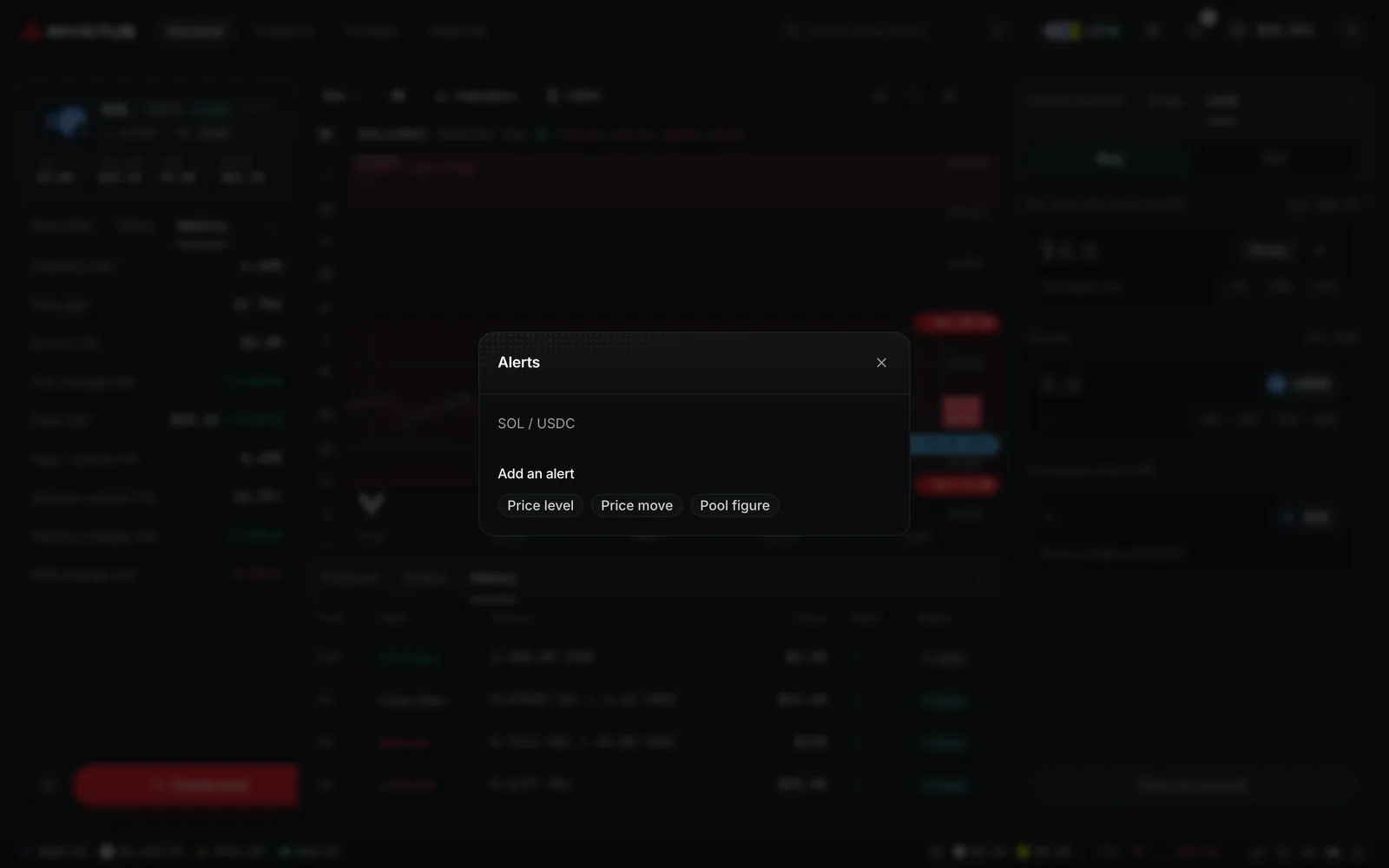
Each position row and each pool panel has a bell icon. Press it to see that thing’s alerts and add one.
| On | Kind | You set |
|---|---|---|
| A position | Position out of range | Nothing |
| A position | Position back in range | Nothing |
| A position | Position near its edge | How close, in percent |
| A position | Fees ready to collect | Nothing |
| A position | Position value moved | A percent, within 5 minutes, an hour or a day |
| A position | Position closed elsewhere | Nothing |
| A pool | Price level | A price in US dollars, and Above, Below or Either |
| A pool | Price move | A percent, within 5 minutes, an hour or a day |
| A pool | Pool figure | Fee APR, TVL, Volume or Liquidity, a percent and a window |
Each rule can be switched off without deleting it, or deleted.
Alerts about your account
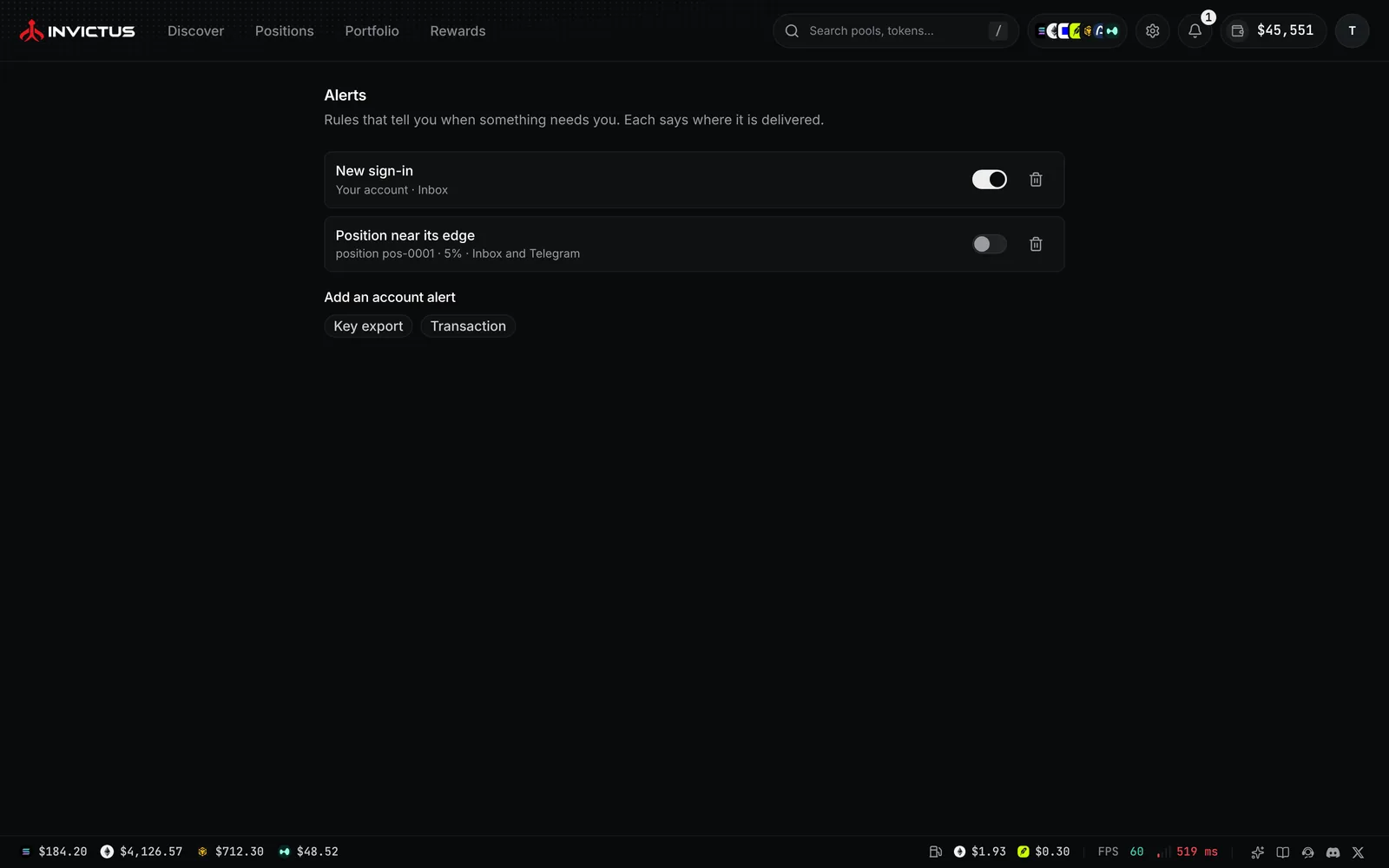
The Alerts page (app.lpinvictus.com/alerts) lists every rule you have and where each is delivered. Use Add an account alert for:
- New sign-in: someone signed in to your account.
- Key export: a wallet key was exported.
- Transaction: one of your transactions confirmed or failed.
Default alerts in Settings
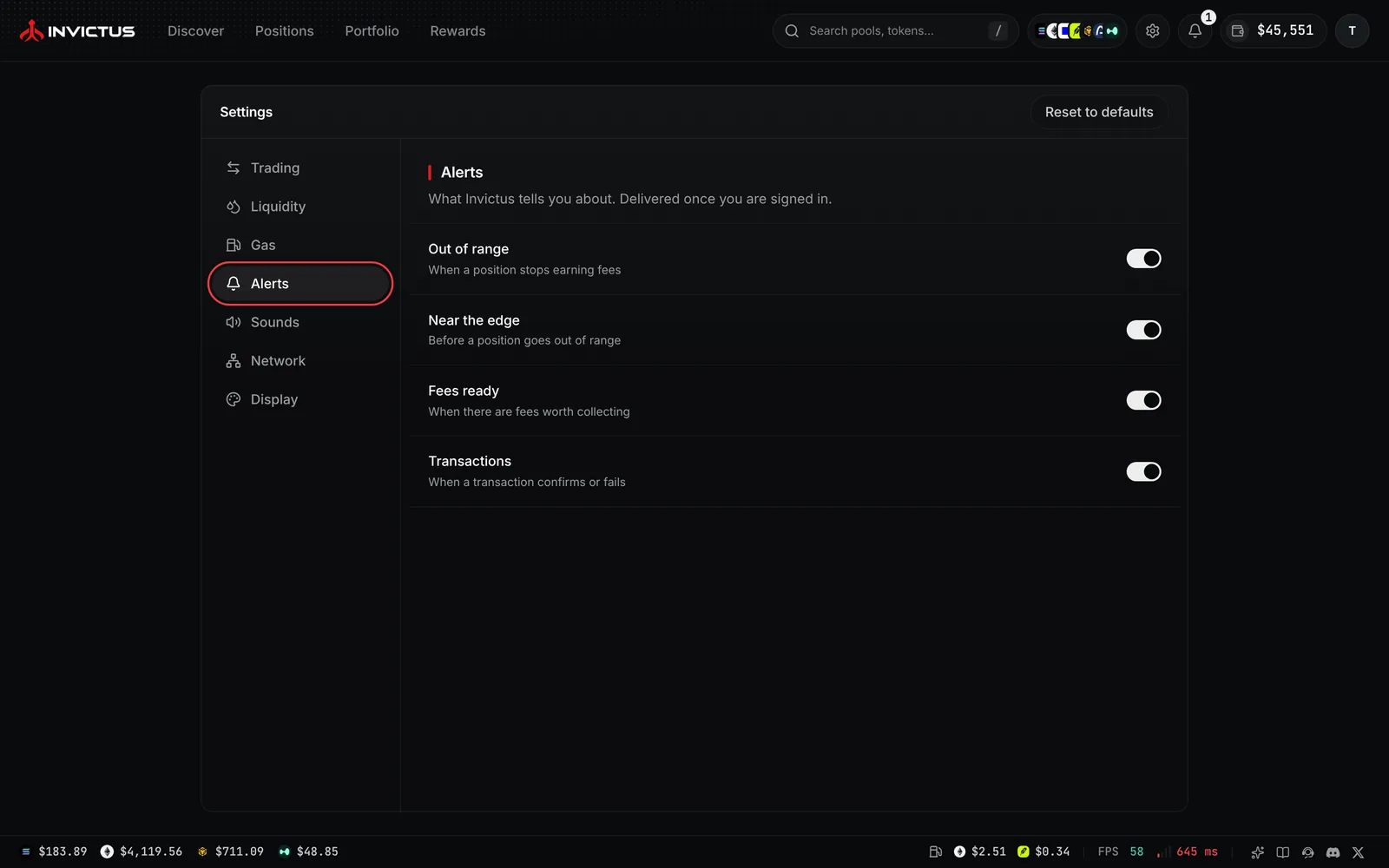
Settings, then Alerts, sets what Invictus tells you about by default: Out of range, Near the edge, Fees ready and Transactions (a swap, a zap or an order that went through, or one that failed or was dropped). For Near the edge you choose how close counts.
Telegram
Link a Telegram chat to receive alerts on your phone, even when Invictus is closed.
Get a code
Open the account menu, choose Security and find Telegram alerts. Press Get a code.
Send it to the bot
Press Open @… next to the code. Telegram opens the official Invictus bot with the code ready; press Start.
You can also send /start followed by the code yourself. The code works once and expires after a short time;
press Make a new code if it ran out.
Done
Alerts now reach that chat as well as your inbox.
Only one Telegram chat can be linked to an account. If one already is, Invictus says so.